

One page where your client reviews, approves and signs
Each project gets a private page with your name and logo. Your client sees what you share, approves it and messages you, and every answer is logged on the project.
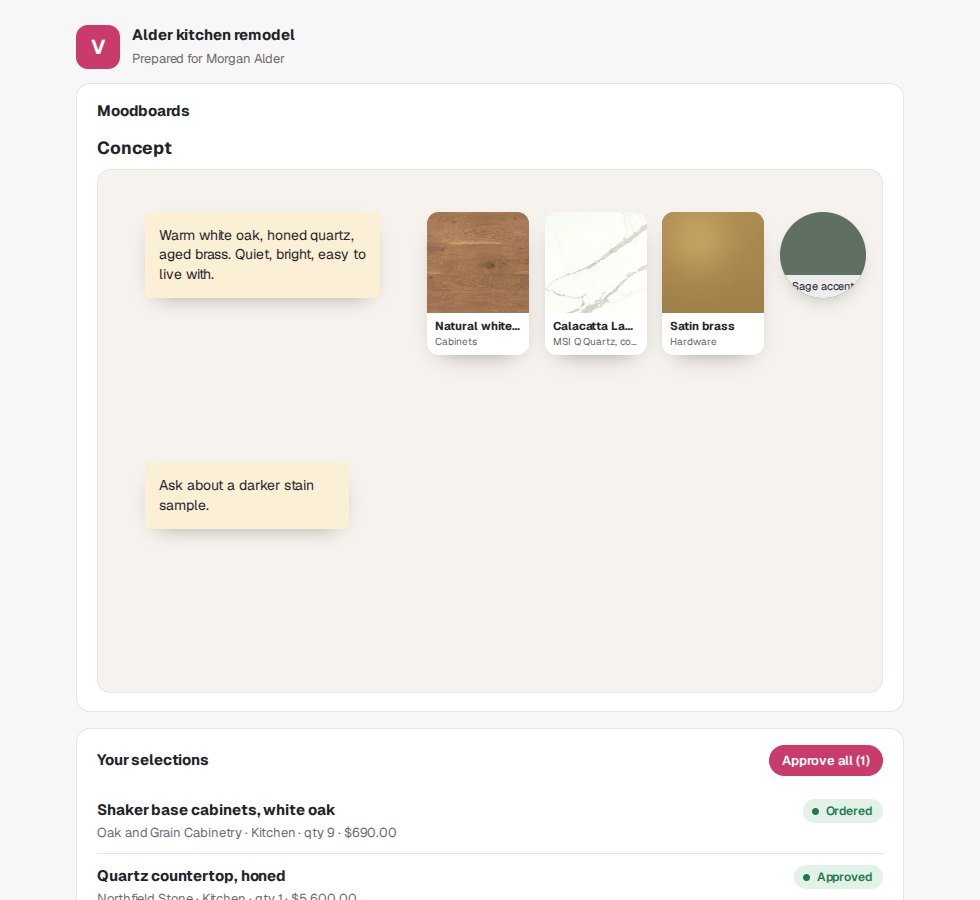
What your client sees and does
Everything on one page, in the order a project happens. A part with nothing in it stays out of the way.
An overview first
Progress steps for the project, a Next up list of what is waiting on them (approvals, quotes, signatures, forms and balances) that jumps to each one, the totals at a glance and your contact details.
Designs and moodboards
Pictures of the designs you choose to show and the moodboards you made, so the client sees the room and the finishes together. They walk through each design in 3D (view only), then approve it or ask for changes. A new design stays a draft until you use Show to client.
Selections to approve
Each product with its picture, room, quantity and price. The client approves them one at a time, or all at once.
Quotes
Each quote you send, with its total and its status. The client approves or declines it with one tap.
Invoices and what is due
What was invoiced, what is paid and the balance, with the payment instructions you wrote. The page does not take card payments; your client pays the way your instructions say.
Questionnaires
Your discovery forms, answered on the page. When you open the design from the project, the answers sit beside the plan as the client's brief.
Contracts to sign
The client reads the contract, types their full name, ticks I agree and signs. The page then shows who signed and when.
Upcoming dates
The project's next dates from your calendar, such as a measure, a delivery or the install.
Files and messages
The files you choose to share, and one message thread with you for the whole project.
What you control
You decide what the client sees, and the project keeps a record of what they agreed to.
What is shared
Drafts stay with you: only the designs you show and the quotes, invoices and contracts you have sent appear. Costs, tasks, time, purchase orders, internal notes and the activity log never do, and only files you mark Share are listed.
Every answer is logged
Each approval, decline, signature and completed questionnaire is added to the project's activity log with the time, so you have a record of who agreed to what.
Your name and logo
The page carries your business name and logo and says it was prepared for your client by your business. On a white-label workspace the Powered by OpalSketch line is left out.
Sections follow your modules
The page follows your Module Manager. Switch off quotes or invoices and that part disappears for the client too; switch off the client portal and the links stop working.
A new link any time
Make a new link from Share with client and the old one stops working, for example when a project changes hands.
Know when they answer Cloud service
With email set up, owners and admins hear when a client sends a message, approves or declines a quote, approves a design, signs a contract or completes a questionnaire. The project overview lists what waits for your client, and one button emails them that list with their link.
How your client gets in
A private link for each project, or your client's own page with every project you share with them. No password for your client to remember.
You share the project
On the project, Share with client makes a private link. Copy it and send it by email or text. With the cloud service and email set up, the portal can send it for you.
Your client confirms their email
When the client on the project has an email address on file, the page asks for that address before it shows anything, and wrong tries are limited. The link keeps working until you make a new one.
Or they sign in to see every project
At Client sign in, your client enters the email address you have on file; with the cloud service, a 6-digit code sent to it confirms the address. Their page lists every project shared with that address, with what is waiting for them, and opens each one without the link's email check.
Today and with the cloud service. In today's browser preview your projects live in your browser, so a client link, and the client's own page, show only projects stored in that browser. That works for showing a client their page at your desk. With the OpalSketch cloud service the link opens on any device, the server checks the link and the email address, and clients sign in with a code sent to their email.
The email address is a second check that the person opening the link is your client. It is not a password, so share the link only with your client.
The client's own page. A code goes out only when a project is shared with that address, and the page answers the same either way, so it never tells anyone who your clients are. Your client stays signed in on that device for 30 days, or until they sign out.
Are you a client?
Sign in with the email address your designer or contractor has on file to see every project they shared with you, or open the link they sent you by email or text.
Show your next client their project
Open the portal, load the sample workspace and use Preview on a project to see exactly what the client sees.